
VisaSoft Studio manual
Contents:
- Getting started (this page): signing in, finding your way around the screen, the menus, the account and administration.
- Collections: the collections screen, the detail, the locales, the item browser, and the create, clone, import and export dialogs.
- Grapheme editor: primitives, objects, vertices and Bézier curves.
- Ideogram editor: the canvas, the glyph page, the grid, the percentile frames, the grapheme toolbox, selection, the gizmo, the context menu and the properties panel.
- Versions and snapshots: autosave, versions, promotion to live, snapshots and comparison.
- Text editor: writing with ideograms, the panels, the page, formatting, imports and exports.
- Font creation: how the font is generated, why the page matters and what every parameter of the export dialog means.
- Keyboard shortcuts: every shortcut, in one table.
Signing in
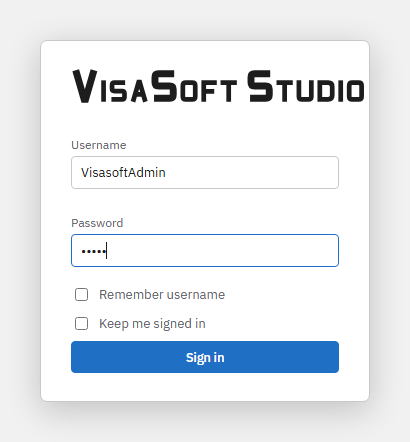
Opening VisaSoft Studio shows the sign-in screen:
| Field | What it does |
|---|---|
| Username and Password | The credentials your administrator gave you. The error message is always the same ("Invalid username or password"), whether the user does not exist, the password is wrong or the account is disabled. |
| Remember username | Keeps the username in this browser so you need not type it next time. It does not keep the password. |
| Keep me signed in | Unticked, the session lasts 12 hours and ends when the browser closes. Ticked, it lasts 60 days and survives closing the browser. |
| Sign in | Enabled once both fields have text; Enter also signs in. |
If the server is configured in single-user mode, the sign-in screen is skipped and you enter directly as administrator.
To leave: menu File → Sign out, or the Sign out button of My account. If the session expires or an administrator revokes it, the app returns to the sign-in screen by itself.
The screen
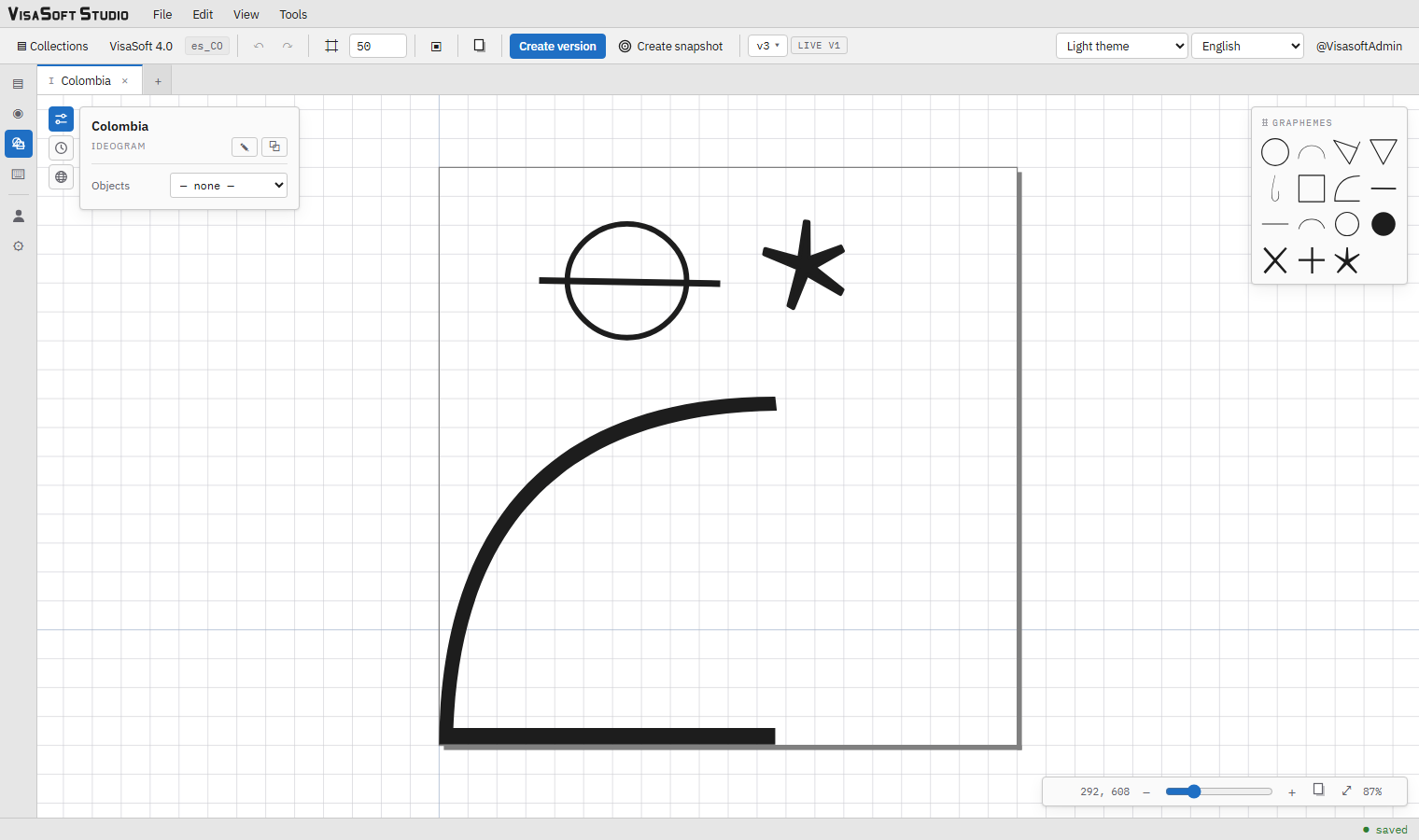
VisaSoft Studio is laid out like a desktop application:
- Menu bar: File, Edit, View and Tools. In the text editor it is replaced by its own menus (Text editor, Format, View, Panels, Downloads). Menus open with a click and, once one is open, hovering the others switches; Escape or a click elsewhere closes them.
- Toolbar: on the left, the Collections button (back to the index) and the name of the open collection (opens its detail); in the editor, the editing controls. On the right, always: the theme selector, the language selector and your username (opens My account).
- Tool rail (left): Collections, Collection details, Ideogram editor, Text editor, and below My account and, if you have access, Administration. The three collection buttons become active once a collection is chosen.
- Document tabs: in the editor, every open grapheme (G) or ideogram (I) is a tab. The + tab returns to the browser without closing anything.
- Work area: the active screen.
- Status bar: in the editor, the save state of the active document and how many tabs have pending changes.
Short notices ("Collection created", "Snapshot saved"…) appear for a few seconds at the bottom of the screen.
The menus

File
| Option | Effect | Where |
|---|---|---|
| New collection | Opens the new collection dialog. Needs the permission to create collections. | Always |
| Clone collection | Opens the clone collection dialog. | With a collection chosen |
| Rename collection | Asks for the new name; it cannot match another collection. | With a collection chosen |
| Add locale | Asks for a new locale in xx_XX format. | With a collection chosen |
| Export font… | Opens the export font dialog. | With a collection chosen |
| Export XML | Opens the export XML dialog. | With a collection chosen |
| Import XML | Opens the import XML dialog. | With a collection chosen |
| Sign out | Ends the current session. | Always |

Edit (only in the ideogram and grapheme editors)
| Option | Shortcut | Effect |
|---|---|---|
| Undo / Redo | Ctrl+Z / Ctrl+Y | On the active document. |
| Create version | Ctrl+S | Freezes the current state as a new version. |
| Create snapshot | Saves a manual snapshot. | |
| Clone item… | Creates a copy of the active item from what is on screen. | |
| New grapheme / New ideogram | Opens the new item dialog. |

View
| Option | Effect |
|---|---|
| Light theme / Dark theme / Dark, white canvas | Switches the theme. Saved in the account. |
| Show or hide the grid | Same as the ⌗ button of the toolbar (editor). |
| Percentile frames | Same as the ▣ button (ideogram editor). |
| Glyph page | Same as the page button (ideogram editor). |
| Español / English / Français / Português (BR) | Interface language. Saved in the browser. |

Tools: Text editor (with a collection chosen), My account and Administration (if you have access).
My account
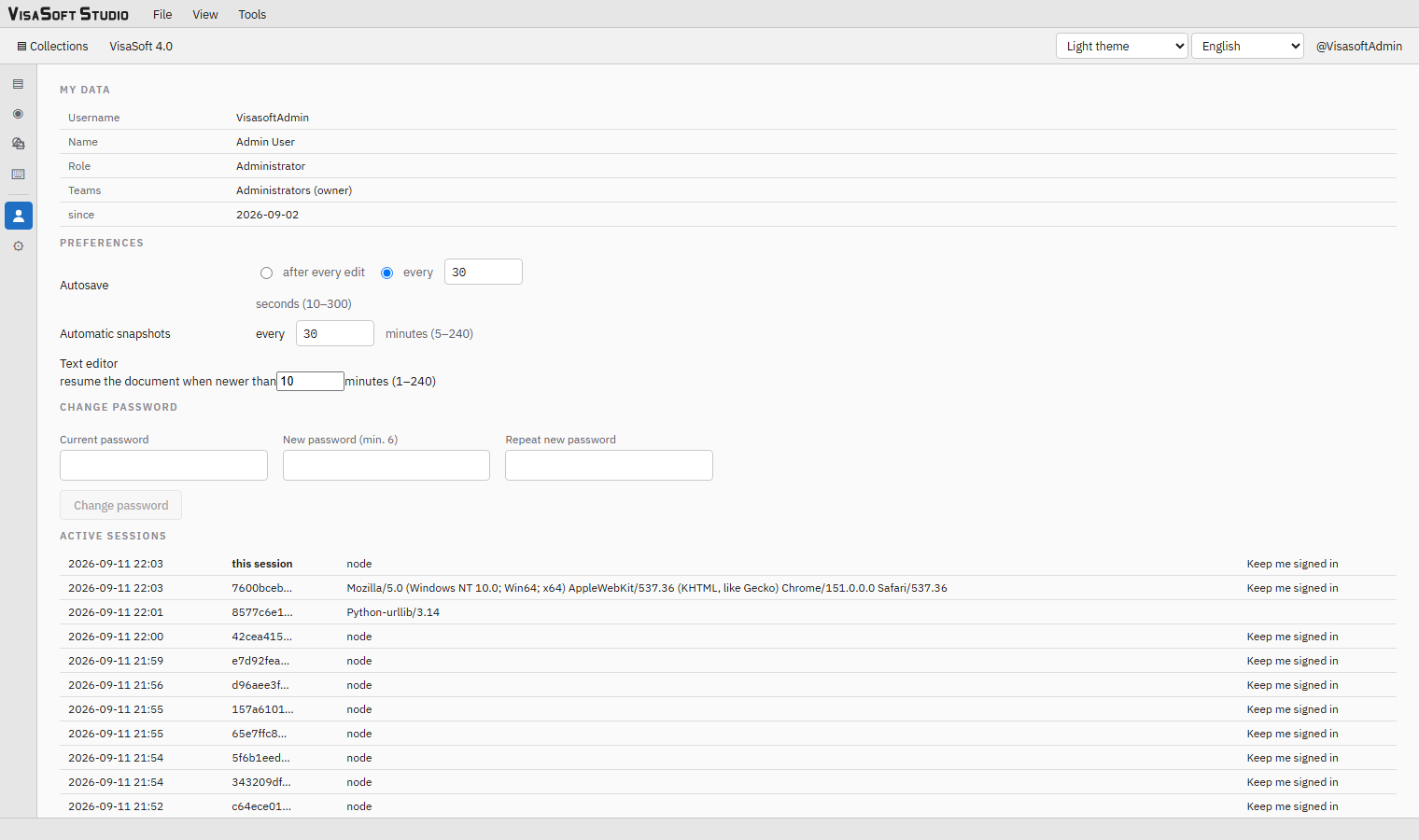
Opened with your username on the toolbar, with the rail or with Tools → My account.
My data: username, name, role (administrator or user), your superior in the hierarchy if any, the teams you belong to with your role in each (owner, secondary owner, member) and the sign-up date.
Preferences (saved to the account at once, showing "Preference saved"):
| Preference | Values | Default |
|---|---|---|
| Autosave | after every change (with a short delay) or every N seconds, from 10 to 300. See autosave. | every 30 s |
| Automatic snapshots | every N minutes, from 5 to 240, while an item is open. | 30 min |
| Text editor | resume the last document if it is less than N minutes old, from 1 to 240. | 10 min |
Change password: current password, new one (at least 6 characters) and its repetition; the button enables once the new one meets the minimum.
Active sessions: every session of your account with its last activity, the browser and whether it is remembered; the current one shows as "this session". Sign out ends this one; Sign out other sessions revokes all the others (for instance the one on a computer you no longer use).
Administration
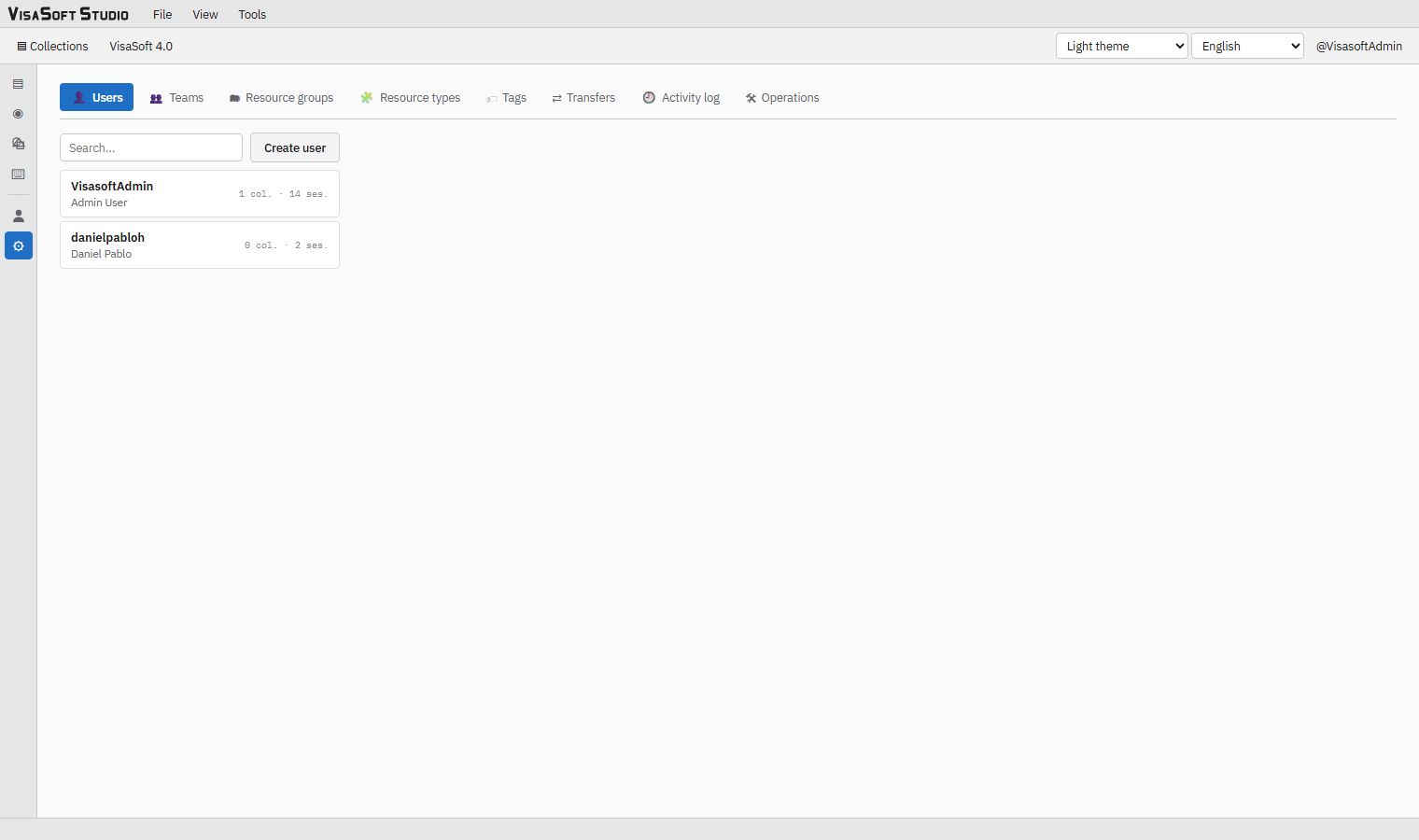
The Administration module appears to administrators (members of the Administrators team) and to owners of any team. It is organised in areas:
| Area | Content |
|---|---|
| Users | Create users (username, password, name, description, superior in the hierarchy), enable/disable, reset the password (one is generated and shown once), see their collections and sessions. |
| Teams | Teams with owner, secondary owners and permanent or expiring members; transfer ownership. |
| Resource groups | The groups collections live in (Default, Private, Public and any created later), their owning team, the resources they hold and the permissions: which users or teams may run which actions, on the whole group or on one collection, permanently or with an expiry. |
| Resource types | Read-only catalogue of the available actions: for collections read, create, edit, delete; for graphemes and ideograms also deprecate version, restore version, import XML, export XML, and for ideograms export font. |
| Tags | Coloured tags (a ten-colour palette or free hex). |
| Transfers | Requests to move a collection from one group to another: pending, accepted, rejected or cancelled; accepted by the owning team of the target group. |
| Activity log | The activity log: only version events (create, promote, restore, deprecate, revive) and snapshot events (take, restore, delete), filterable by user, action, collection, keyword and dates. |
| Operations | Bulk transfer of team ownership between two users and the debug mode. |
| Text editor | The maximum number of saved documents per user in the text editor (beyond it the oldest are removed). |
| Limits | The defaults for collections per user, graphemes per collection and ideograms per collection. A user (on their card) or a collection (on its detail) can have a value of its own; 0 = default. Lowering a limit keeps what exists but stops additions. See limits. |
How permissions are decided
What each person may do with a collection is computed on the server, and the interface merely hides what is not allowed:
- Administrators may do everything.
- The owner of a collection, and anyone above them in the user hierarchy, may do everything with it.
- Members of the owning team of the group the collection lives in may do everything with it.
- Otherwise an explicit permission on the group or on the collection is needed, granted to the person or to one of their teams, and including the specific action (read, edit, export font…).
That is why a button may be dimmed or absent: you do not hold that action on that collection.