
Text editor
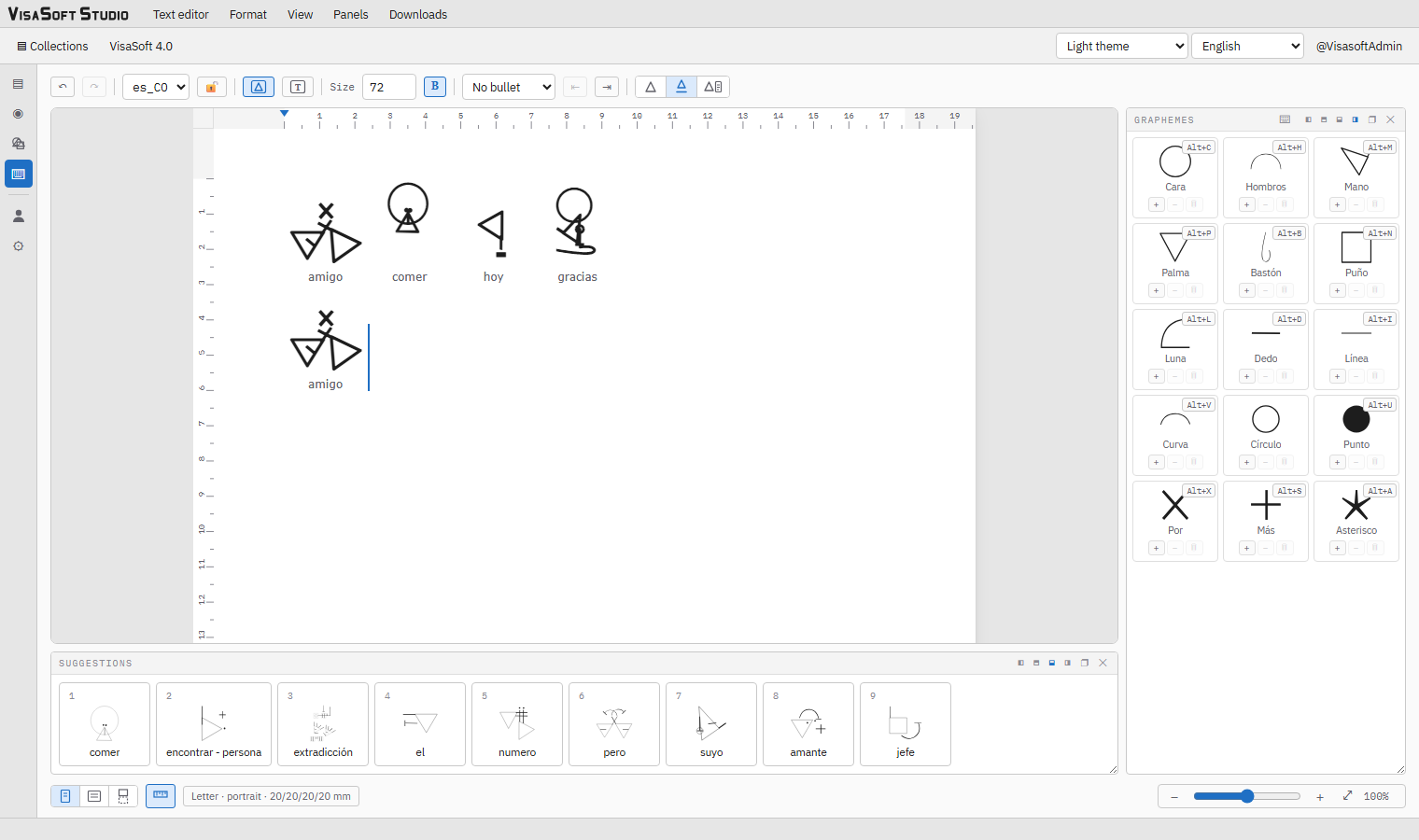
The text editor is where visagrafía® is written. It works like an input method (IME): you type the word, choose the ideogram among the candidates, and the document grows ideogram by ideogram. It opens with the ⌨ button of the rail or with Tools → Text editor, and works on a collection: it uses its ideograms, its locale and its font. If none is chosen, it opens the one you used last (or the first you can see).
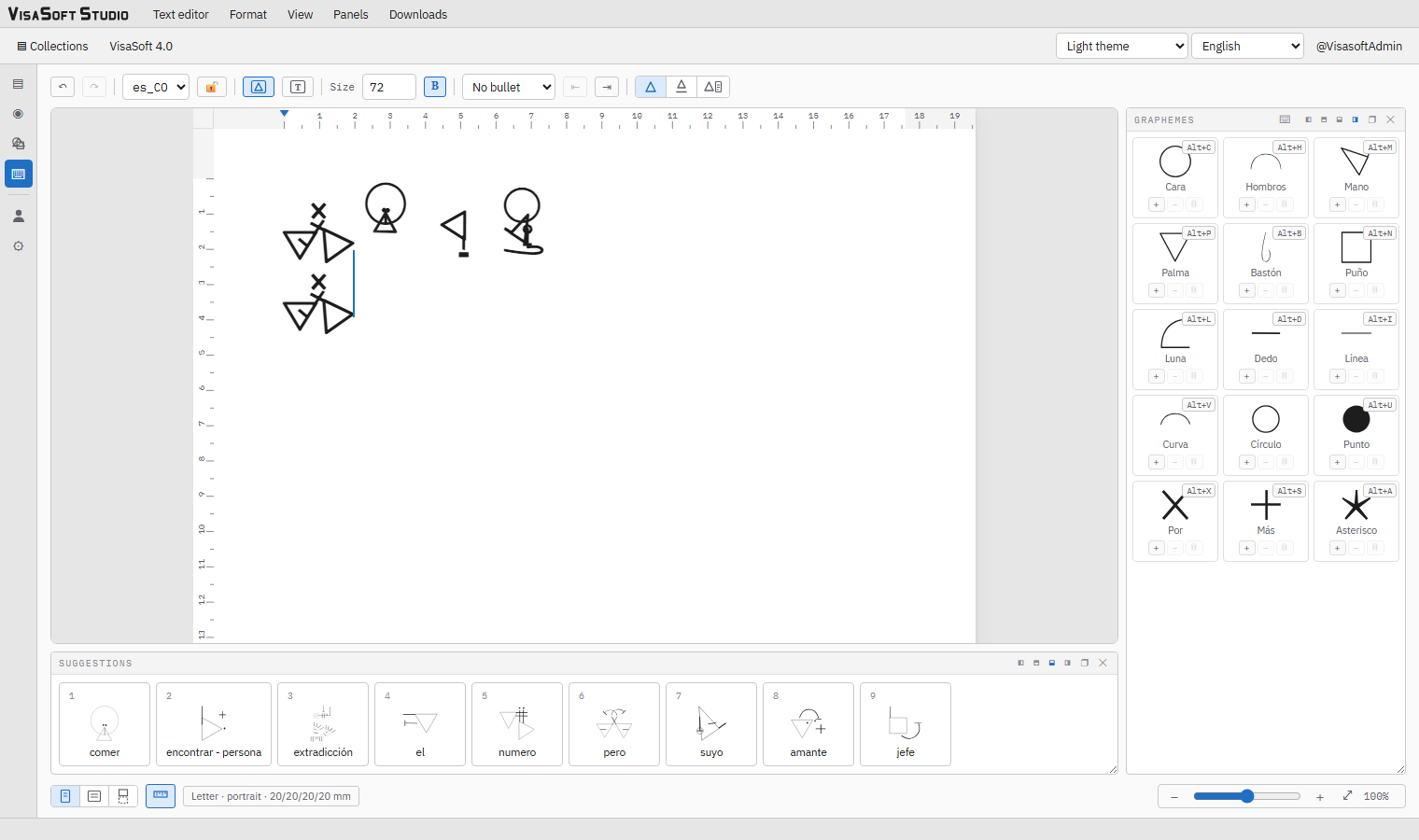
Parts of the editor
- Its own menus: Text editor, Format, View, Panels and Downloads (they replace the general menus while the editor is on screen).
- Toolbar: undo/redo, document locale, read-only, input mode, size and styles, bullets and indent, and the words mode.
- The sheet: the document's page, with optional rulers.
- Dockable panels: Graphemes, Suggestions and Words.
- Status bar: page / web / print view, rulers, page setup, page count and the zoom bar.
Writing
Ideogram mode
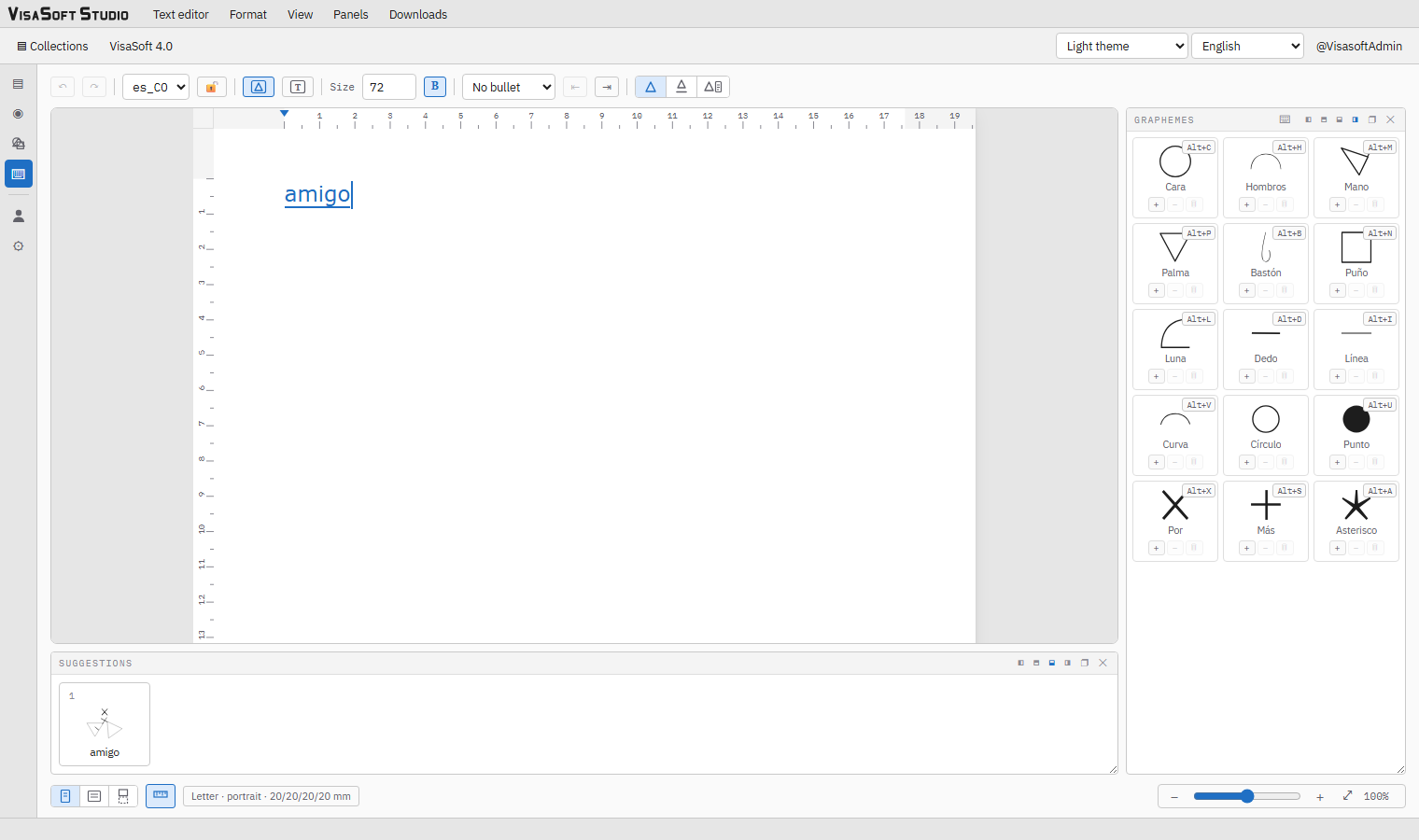
With the ideograms input mode (the triangle button on the toolbar, the default), the letters you type do not enter the document: they form a composition text next to the caret and the Suggestions panel shows the candidates: the ideograms whose gloss matches. The search ignores accents and case and ranks: exact match, then prefix, then substring; among equals, by frequency in the corpus and by what you have used (every pick teaches the engine).
| Key | Effect during composition |
|---|---|
| Enter or Space | Inserts the first candidate. With no candidates, Enter inserts the letters as plain text and Space inserts them followed by a space. |
| 1 … 9 | Inserts the candidate with that number. |
| Click on a candidate | Inserts it. |
| Backspace | Deletes the last letter of the composition. |
| Escape | Discards the composition and the grapheme filter. |
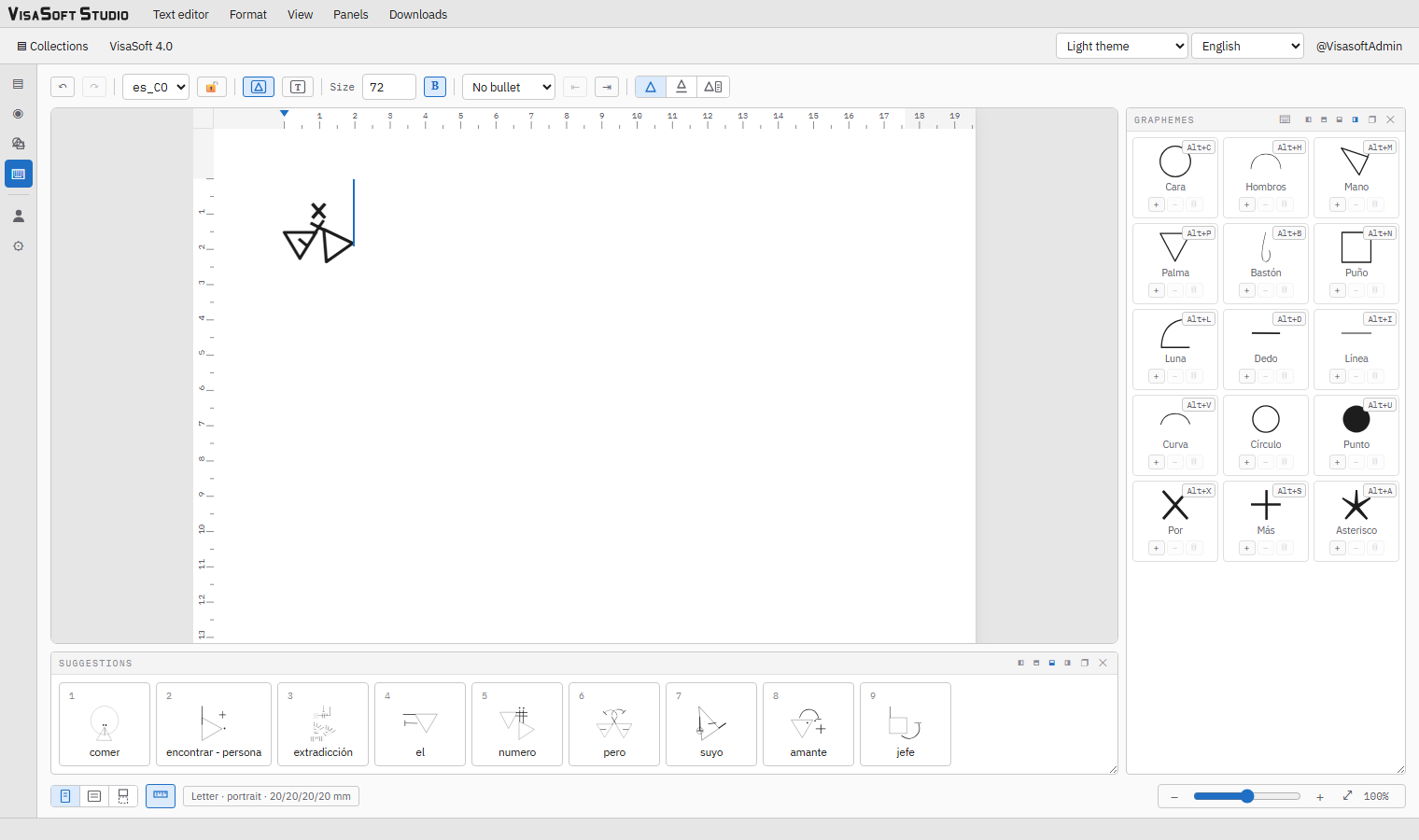
With an empty composition right after an ideogram, the panel shows predictions: what you usually write after that sign (your own ideogram pairs first, then the frequent pairs of the corpus, then your favourites). 1–9 and clicking work the same; a letter starts a new composition.
Punctuation, digits and any non-letter character enter the document directly; if there was a composition, it is inserted first as text.
Text mode

The text input mode (T button) writes letters straight into the document, without candidates, to mix visagrafía® with ordinary text. The toolbar then shows the text font (sans-serif, serif, monospace, Arial, Verdana, Georgia, Times New Roman, Courier New, Trebuchet MS), the text size (8–96 px) and the B, I and S buttons (bold, italic, strike). The mode is remembered in the account.
The caret, the selection and editing
| Action | How |
|---|---|
| Move the caret | ← → element by element; ↑ ↓ to the previous or next paragraph (same position); Home End to the start or end of the paragraph; Ctrl+Home Ctrl+End to the start or end of the document. A click on the left half of an ideogram puts it before, on the right half after; a click on the sheet's background, at the end. |
| Select | Shift + movement; mouse drag; Ctrl+A selects all. The selection is also highlighted in the Words panel. |
| Delete | Backspace deletes the previous element (or the selection); Delete the next one. |
| Copy | Ctrl+C copies the selection (or everything, from the menu) as Unicode text: ideograms travel as their Private Use Area characters and show wherever the font is installed. Copy as words copies the reading in glosses. |
| Cut and paste | Ctrl+X; Ctrl+V pastes plain text and rebuilds the ideograms from their characters (using the locale's pack). Paste from the menu needs the browser's clipboard permission; Ctrl+V in the sheet always works. |
| Undo / redo | Ctrl+Z / Ctrl+Y, up to 200 steps, also with the ↶ ↷ buttons. |
| Save now | Ctrl+S forces the document to be saved (it saves by itself anyway). |
Paragraphs, indent and lists
Every paragraph ends with a paragraph mark (like the ¶ of a word processor): the document always ends in one, the caret stops before it and exports leave it out.
| Action | How |
|---|---|
| New paragraph | Enter (with no composition). The new paragraph inherits the indent and the bullet. |
| Indent | Tab at the start of a paragraph (or anywhere in a list item) increases the indent; Shift+Tab reduces it; the ⇤ ⇥ buttons of the toolbar and Format → Increase / Decrease indent do the same. Up to 8 levels, each of the indent distance of the page setup. |
| Tab stop | Tab in the middle of a paragraph inserts a tab stop of the same width. |
| Bullets | The toolbar dropdown or Format: No bullet, Disc •, Circle ◦, Square ▪, Dash –, Numbers 1., Letters a., Roman i. Applies to the paragraphs of the selection or to the caret's. |
| End a list | Enter on an empty item removes the bullet. |
| At the start of an item | Backspace removes the bullet first, then the indent and finally joins with the previous paragraph. |
Styles
In ideogram mode, Size (16–120, in steps of 4; 48 by default) and B set the size and the boldness of the ideograms: of the selection if there is one, or the document default otherwise. In text mode, the font, the size and B/I/S do the same with plain text. Format also offers preset ideogram sizes (24, 32, 48, 64, 96). With no selection, the bar shows the style at the caret (that of the previous element) and what you type next inherits it; a value chosen there applies to what you type at that spot, besides becoming the document default. The caret is as tall as the element it sits next to: an ideogram's height or the text's. Selection styles are stored element by element; defaults, in the account.
The panels
The three panels dock to any side of the editor or float: the buttons of their header are ◧ left, ⬒ top, ⬓ bottom, ◨ right, ❐ floating and ✕ hide (the Panels menu shows them again). They resize by dragging their edge and, floating, move by their title. Position and size are saved in the account.
The Graphemes panel

It is the other way to find a sign: by its composition. Every card shows the grapheme, its localized name and, if it has one, its shortcut. A click adds it to the filter: the candidates become the signs that contain that grapheme, the tightest compositions first, and the letters you type narrow within them. The filter is a multiset: + adds another occurrence (×2 looks for signs that use the grapheme twice), − removes one and 🗑 removes them all. Graphemes that no sign can combine with the ones already chosen are dimmed and do not respond (the same rule as on the Android and Windows keyboards).
Grapheme shortcuts: the ⌨ button of the header turns on assignment mode; click a grapheme and press a key (a–z, 0–9): from then on Alt+key adds an occurrence, Alt+Shift+key removes one and Ctrl+Alt+key removes them all. Backspace during assignment removes the shortcut, Escape cancels. Shortcuts are saved in the account.
The Suggestions panel
The candidates or the predictions, numbered 1 to 9, with the drawing and the gloss; the tooltip shows the graphemes the sign is made of. Empty until you type; "No candidates" when a search finds nothing.
The Words panel
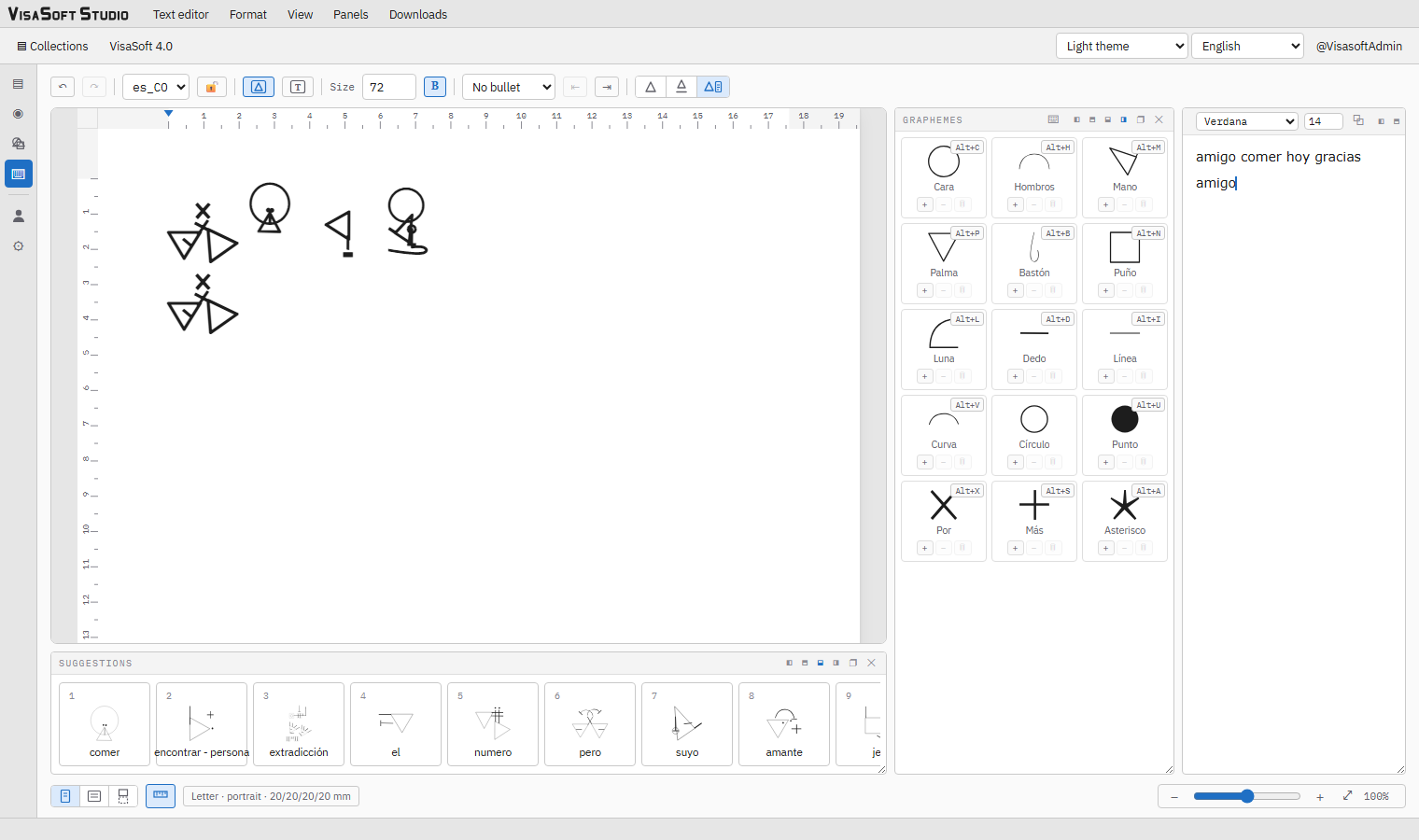
The reading of the document in glosses, read-only, with a caret that mirrors the editor's. A click on a word moves the editor caret before its ideogram; with the panel focused, ← → walk the words, ↑ ↓ jump to the same word of the neighbouring paragraph and Home End go to the first and the last. Hovering a word underlines it and its ideogram in the sheet, and the other way round. The ⧉ button of the header copies the reading.
The words under the ideograms
The three-button control at the end of the toolbar (and View → Words) decides how glosses show: Ideograms only, Beneath each ideogram (the word centred under every sign, in the text font) or In a panel (the Words panel). Exports honour the mode: in PDF and DOCX the word goes under every ideogram, and in panel mode the whole reading is appended at the end of the document.
The page

| Control | Detail |
|---|---|
| Page view | The sheet at its real size with its margins. |
| Web view | Full width, no page. |
| Print view | Like the page view, with the page break lines and their number; the status bar reports the total pages. |
| Rulers | Horizontal ruler (shaded margins, centimetres and the indent marker of the caret's paragraph) and vertical. |
| Page setup | The button summarising "Letter · portrait · 20/20/20/20 mm" opens the dialog. |
| Zoom | A bar from 25 % to 400 %: −, slider, +, ⤢ (100 %). Also Ctrl+wheel (centred on the pointer), Ctrl+0, Ctrl++, Ctrl+-. Zoom only changes the view: the page keeps its width and scrollbars appear. |
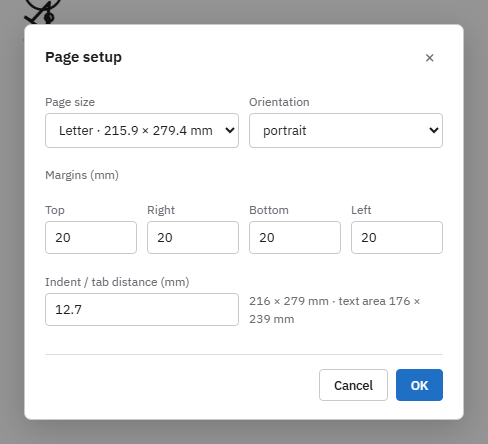
Page setup: size (A4 210 × 297, Letter 215.9 × 279.4, Legal 215.9 × 355.6, A5 148 × 210, B5 176 × 250 mm), orientation (portrait or landscape), top, right, bottom and left margins in millimetres (0–80) and the indent / tab distance (2–60 mm). The summary shows the size of the page and of the text area. It is saved in the account and used by the sheet, the rulers, the print view and the PDF and DOCX exports.
Find and replace
Ctrl+H (or Ctrl+F, or Find and replace… in the Text editor menu) opens the search bar under the toolbar. The search runs on the document read as words: each ideogram's gloss plus the latin text, case-insensitive; a match that touches an ideogram takes the whole ideogram. The current match is selected in the sheet (and in the Words panel) as you type; ◀ ▶ go to the previous and the next one (Enter and Shift+Enter in the search field do the same).
Replace with accepts a word of the locale — the matching ideogram is inserted — or any text, which goes in as latin text (private-use characters resolve to ideograms). Replace ◀ / ▶ replace the current match and jump to the previous or the next one; Replace all replaces every match. In read-only mode the bar only searches.
Read-only
The padlock on the toolbar (🔓/🔒, also View → Read-only) blocks all editing: only navigating, selecting and copying remain. Useful to read or present a document without touching it.
The font
Ideograms are drawn, according to Format:
- with the locale's font, which the server generates from the live versions and the editor loads on the fly (Font, the default mode; vectors show while the font arrives);
- as vectors drawn live from the geometry (Vector), no font needed;
- as GIF images generated from the vector (GIF), the same format the Android keyboard sends.
Load a font to try loads a .ttf or .otf file from disk and draws the ideograms with it for this session only: it is the way to try a freshly exported font before publishing it. Server font goes back to the collection's.
Documents
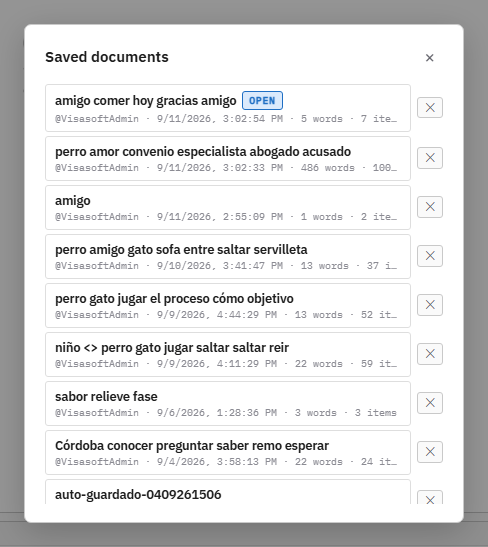
The text is saved by itself, on the server, as one document per user, shortly after every change and when leaving the editor. When you come back, the last document is resumed if it is less than N minutes old (10 by default; a My account preference); otherwise a new one starts and the previous stays in the list.
| Text editor menu | Effect |
|---|---|
| New document | Saves the current one and starts an empty one. |
| Saved documents (n) | Lists your documents with their title (the first words), date, number of words and of elements; opening one saves the current first; ✕ deletes it after confirming. |
| Delete document | Deletes the current document and its saved copy, after confirming. |
An administrator sets the maximum number of documents per user; beyond it the oldest are removed.
Import and export
| Option (Text editor menu) | Detail |
|---|---|
| Import DOCX… | Reads the text of a .docx. Visagrafía® text written with the font is rebuilt as ideograms; ideograms present as pictures cannot be recovered. |
| Import PNG (embedded text)… | Reads a PNG or JPEG sent by the keyboards (Android, iOS) or exported from here: it carries the text, its locale and the font it was drawn with (the "collection locale" name, see fonts) embedded. If the collection has that locale, the editor switches to it; otherwise it resolves with the current one and says so. If the font is another collection's on this server, the editor loads it as a trial font so the message looks as it was written; if it is not available, it says so and draws with the default. |
| Export to PDF… | Opens the browser's print dialog with the document laid out: page size and margins, indents, bullets, tab stops, text styles and the words according to the mode. Choose "Save as PDF". |
| Export to DOCX | Downloads visagrafia.docx: every ideogram is a picture of the text size (with the word drawn inside in Beneath each ideogram mode), with section, margins, indents, markers, tab stops and styles. |
| Export to PNG (embedded text) | Downloads visagrafia-<locale>.png: the document as an image (eight ideograms per row, like a keyboard message) with the text and the locale embedded in the PNG, so it can be imported back here or read with any metadata tool. |
The Downloads menu

| Option | Detail |
|---|---|
| Download locale package (.zip) | The locale's companion pack: manifest.json + pack.tsv + font.ttf. It is what the Android keyboard imports in Settings → Import locale package. |
| Download pack (.json) / (.tsv) | The word pack the native keyboards use: every word with its accent-folded form, its character, its concept, its rank and its graphemes, plus the grapheme table and the seeded predictions. |
| Download font (.ttf) | The locale's font as the server generates it, unnormalized. For the export with parameters, see font creation. |
The menus, in full

Text editor: New document · Saved documents · Delete document · Undo · Redo · Cut · Copy text · Copy as words · Paste · Select all · Import DOCX… · Import PNG… · Export to PDF… · Export to DOCX · Export to PNG.

Format: the document's locale (one entry per locale of the collection) · render mode Font / Vector / GIF · Size 24 / 32 / 48 / 64 / 96 · Load a font to try… · Server font · Bold Ctrl+B · Italic Ctrl+I · Strike · Text font (one entry per font) · Text size 12 / 16 / 20 / 24 / 32 / 40 · No bullet and the seven bullets · Increase indent Tab · Decrease indent Shift+Tab · Page setup…

View: Read-only · Page / web / print view · Rulers · Input mode ideograms / text · Words: ideograms only / beneath each ideogram / in a panel · Zoom in Ctrl++ · Zoom out Ctrl+- · Zoom 100 % Ctrl+0.

Panels: Graphemes · Suggestions · Words (tick or untick each).
Downloads: the four items described above.