
Collections
A collection is the container of everything: its graphemes (shared) and its ideograms, organised by locale. Every collection has a name, an owner, a creation and a modification date, and lives in a resource group that decides who can see and edit it.
The collections screen
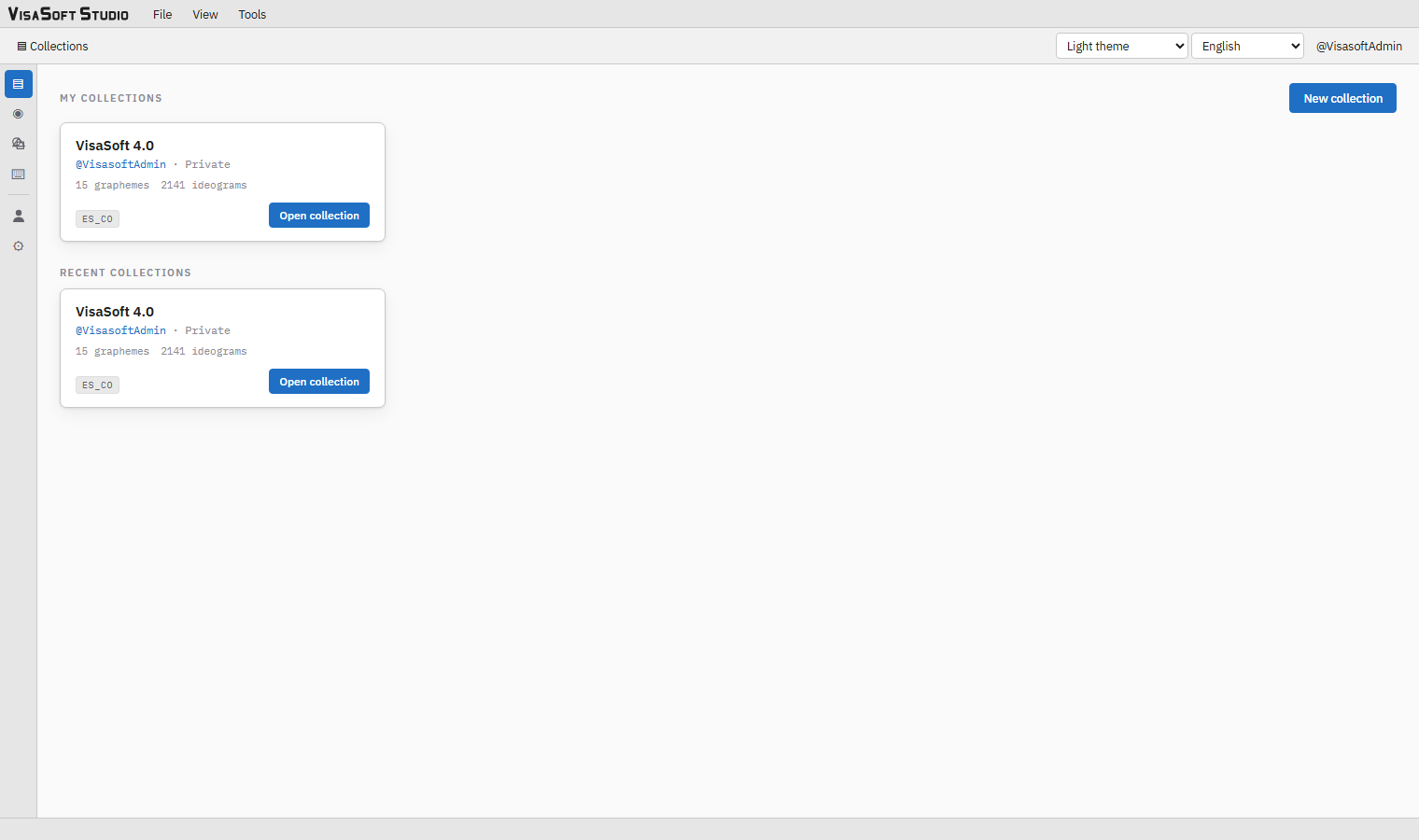
It is the first screen, and you return to it with the Collections button of the toolbar or of the rail. It shows three sections:
- My collections: the ones you own.
- Recent collections: the ones you opened lately (up to eight).
- Other collections: the rest of what you can see.
Every card shows the name, @owner · group, the number of graphemes and ideograms and one badge per locale. A click on the card opens the detail; the Open collection button goes straight to the item browser. Top right, New collection (if you may create) and, next to it, your quota: "n / max collections" (see limits).
New collection
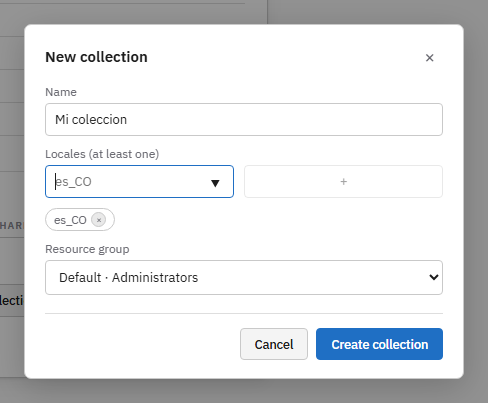
File → New collection or the button on the collections screen.
| Field | Detail |
|---|---|
| Name | Required. |
| Locales (at least one) | Type a locale in xx_XX format (two lowercase letters, underscore, two uppercase: es_CO, en_US, fr_FR, pt_BR) and press + or Enter. The locales of other collections are suggested as you type. Each one becomes a chip that × removes. The field turns red if the format is invalid. |
| Resource group | Required: the group the collection will live in. Groups you cannot create in are dimmed with "no permission". |
| Create collection | Enabled once there is a name, at least one locale and a group. |
The new collection is empty: no graphemes, no ideograms. To start from existing material, clone another one or import XML.
The detail of a collection
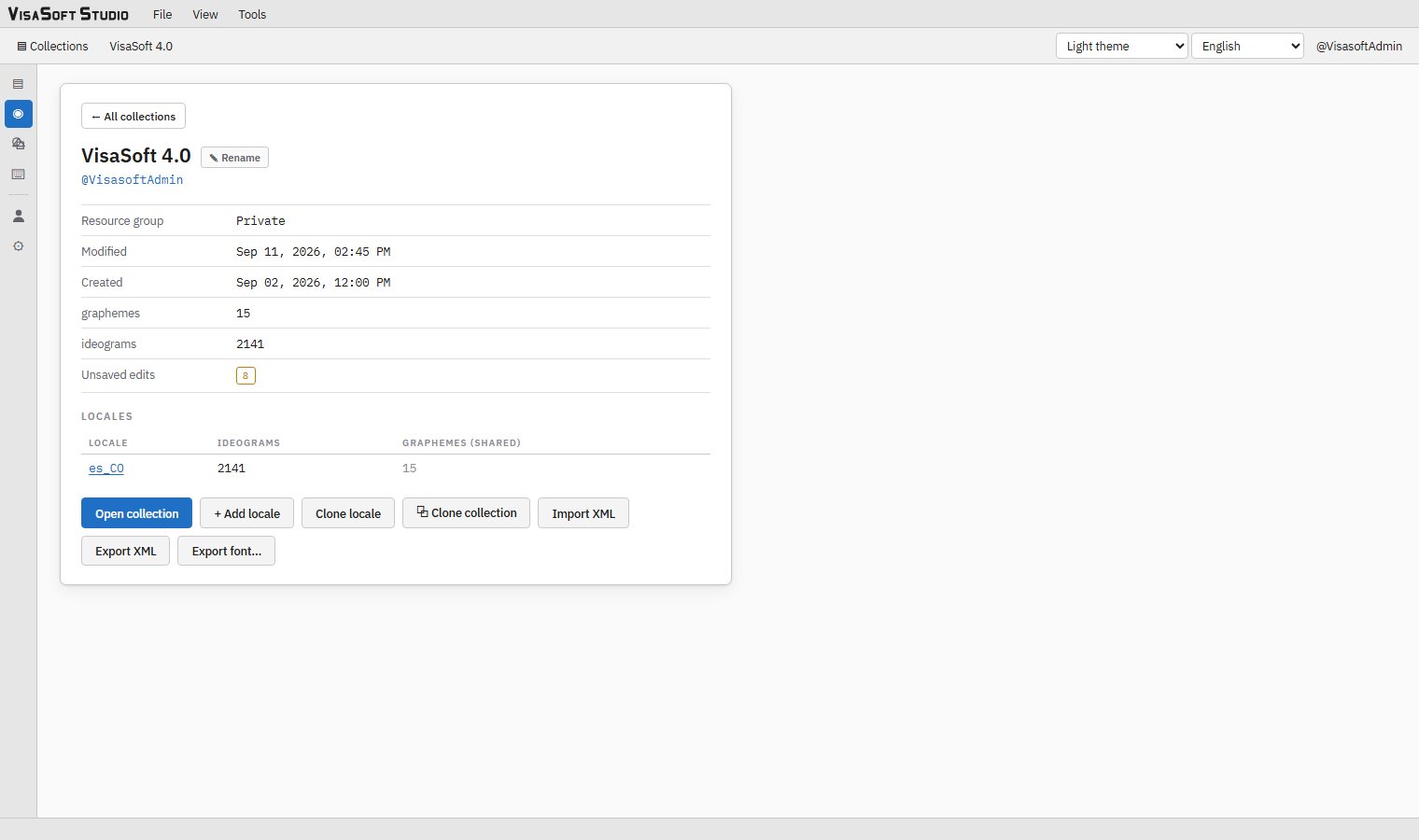
Reached with a click on a card, with the collection name on the toolbar or with the Collection details button of the rail.
At the top: ← All collections, the name with the ✎ Rename button (if you may edit the collection) and @owner. Below, the data: Resource group, Modified, Created, graphemes and ideograms (each as "n / max", see limits) and, when there are any, Unversioned changes (how many items have autosaved edits that are not a version yet).
The Locales table lists every locale with its number of ideograms and of (shared) graphemes. A click on the locale opens the collection in the editor directly in that locale.
The action buttons:
| Button | What it does |
|---|---|
| Open collection | Opens the item browser. |
| + Add locale | Dialog with the new xx_XX code; suggests the locales that exist in other collections and rejects the ones this collection already has. |
| Clone locale | Copies every ideogram of one locale of this collection into a new locale of the same collection; see clone locale. |
| ⧉ Clone collection | Creates a new collection from this one; see clone collection. |
| Import XML | Imports .grf/.idg files; see import XML. |
| Export XML | Exports the collection to the XML format; see export XML. |
| Export font… | Generates the TrueType font of a locale; see font creation. Dimmed when the collection has no ideograms. |
| ⇣ Merge from master | Brings what is missing from a master collection and syncs the components of the existing ideograms; see master collection and merge. Only on collections that are not masters, and only when a master exists. |
Buttons appear only if you hold the matching action on the collection.
Master collection and merge
A master collection is the reference the others are brought up to date with: for instance the official collection the regional variants start from. An administrator marks it on its detail, in the Master collection row (Mark as master); there can be several, and their cards carry the master badge.
⇣ Merge from master, on the detail of any collection that is not a master, picks the master and first shows what the merge would do, touching nothing. On confirming:
- The live versions of both collections are used and items are matched by name.
- Graphemes the master has and this collection lacks are copied; those the master no longer has are removed from this collection (and from its ideograms).
- Missing locales are added with all their ideograms; in existing ones, the missing ideograms are copied.
- In an ideogram present in both, the graphemes the master added are inserted (with their placement in the master) and those it dropped are removed; the rest keep the placement they have here, so local adjustments survive.
- Every changed ideogram gets a new version, promoted live; the previous one stays in history and can be checked out or promoted again. If the ideogram had unversioned edits, they stay on top of the previous version (the dialog says how many).
Additions count against the collection's limits; if they do not fit, the merge is refused before anything is written. Repeating the merge with the same master changes nothing.
Limits
Every account has a maximum number of collections, and every collection a maximum of graphemes and of ideograms. The defaults are set by an administrator in Administration → Operations → Limits; a user (Max. collections on their card) or a collection can also be given a limit of its own.
- The collections screen shows "n / max collections"; at the maximum the figure is highlighted and New collection is disabled (the hover text says why). Cloning and importing count too.
- The detail shows graphemes and ideograms as "n / max". Creating, cloning, importing or restoring an item beyond the maximum is refused with "… limit reached (n of max). Ask an administrator to raise it".
- An administrator also sees the Limits row with two fields, graphemes and ideograms, for this collection: 0 = the default. Lowering a limit never removes what already exists; it only stops additions.
- If two people add at the same time, one of them may get "Another change is in progress; try again in a moment": just retry.
Rename collection
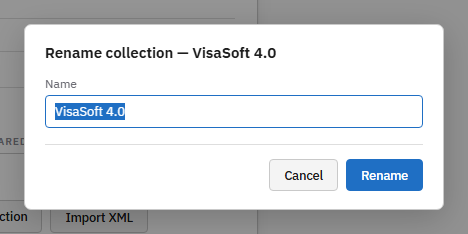
Asks for the new name; the button is disabled when it is empty or matches (case-insensitively) another collection. Renaming changes nothing in exported files except the name of the root folder.
Add locale
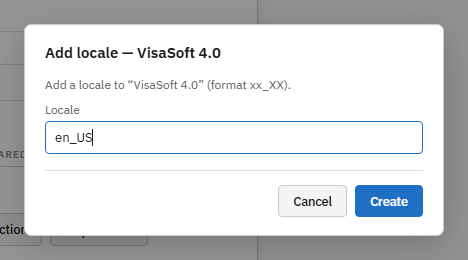
The field validates the xx_XX format as you type and warns when the collection already has that locale. The new locale starts with no ideograms; the graphemes are already available because they belong to the collection.
Clone locale
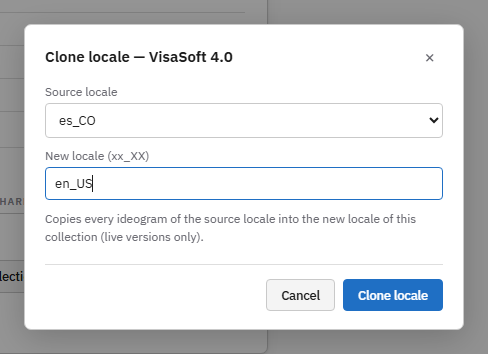
Copies the live versions of every ideogram of the Source locale into a New locale of the same collection. It is the way to start translating a corpus into another language: clone first, then rename every ideogram with its gloss in the new language. The final notice says how many ideograms were copied.
Clone collection
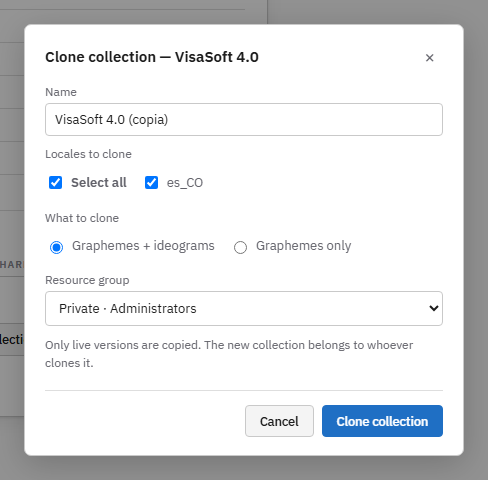
Creates a new collection owned by you:
| Field | Detail |
|---|---|
| Name | Proposed as "Name (copia)". |
| Locales to clone | Tick the ones to copy (Select all ticks them all). |
| What to clone | Graphemes + ideograms copies everything; Graphemes only creates a collection with the graphemes and the chosen locales empty, to start a new corpus with the same alphabet. |
| Resource group | Where the copy will live; the original's group is proposed. |
Only the live versions are copied: the copy inherits neither the history nor the snapshots.
The item browser
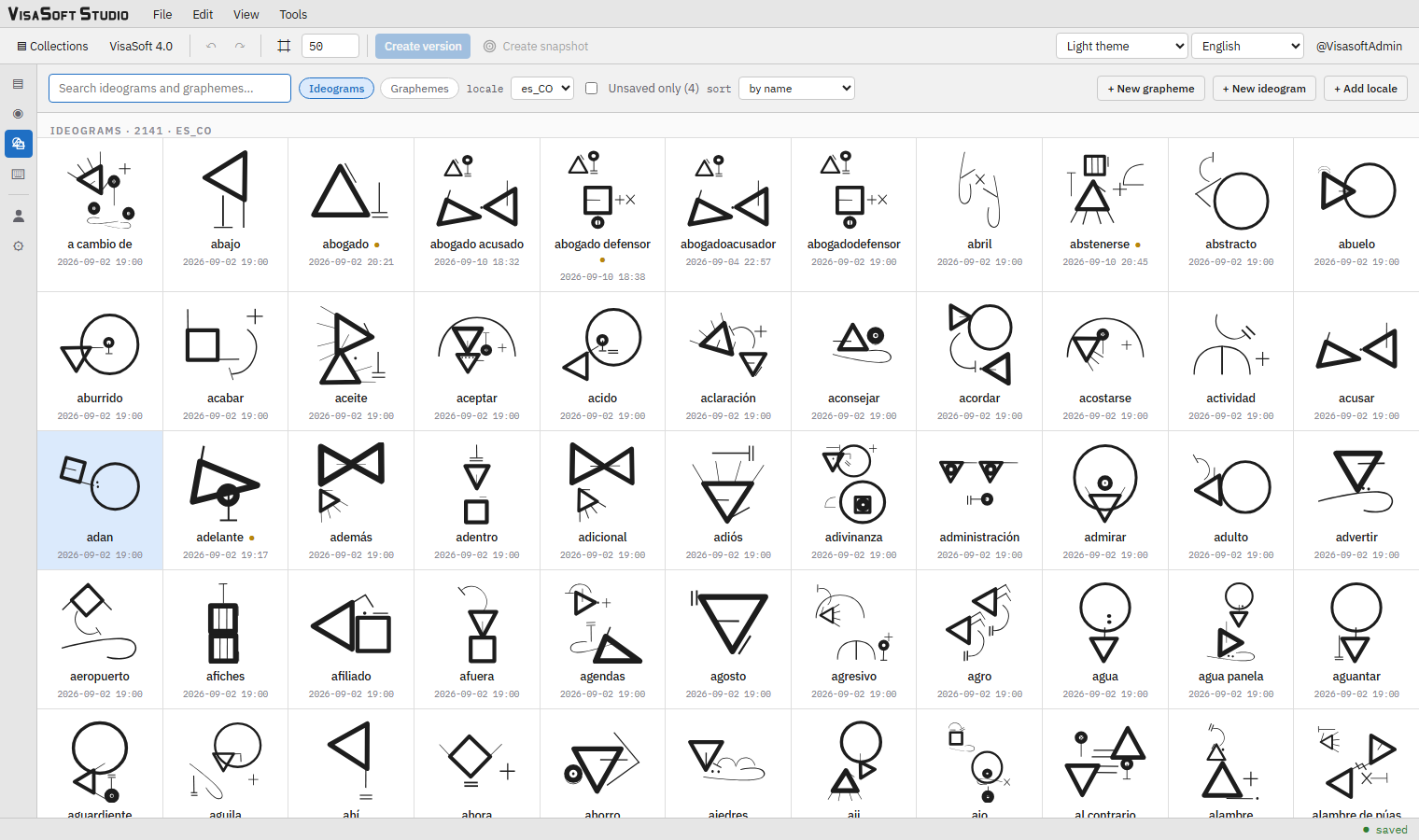
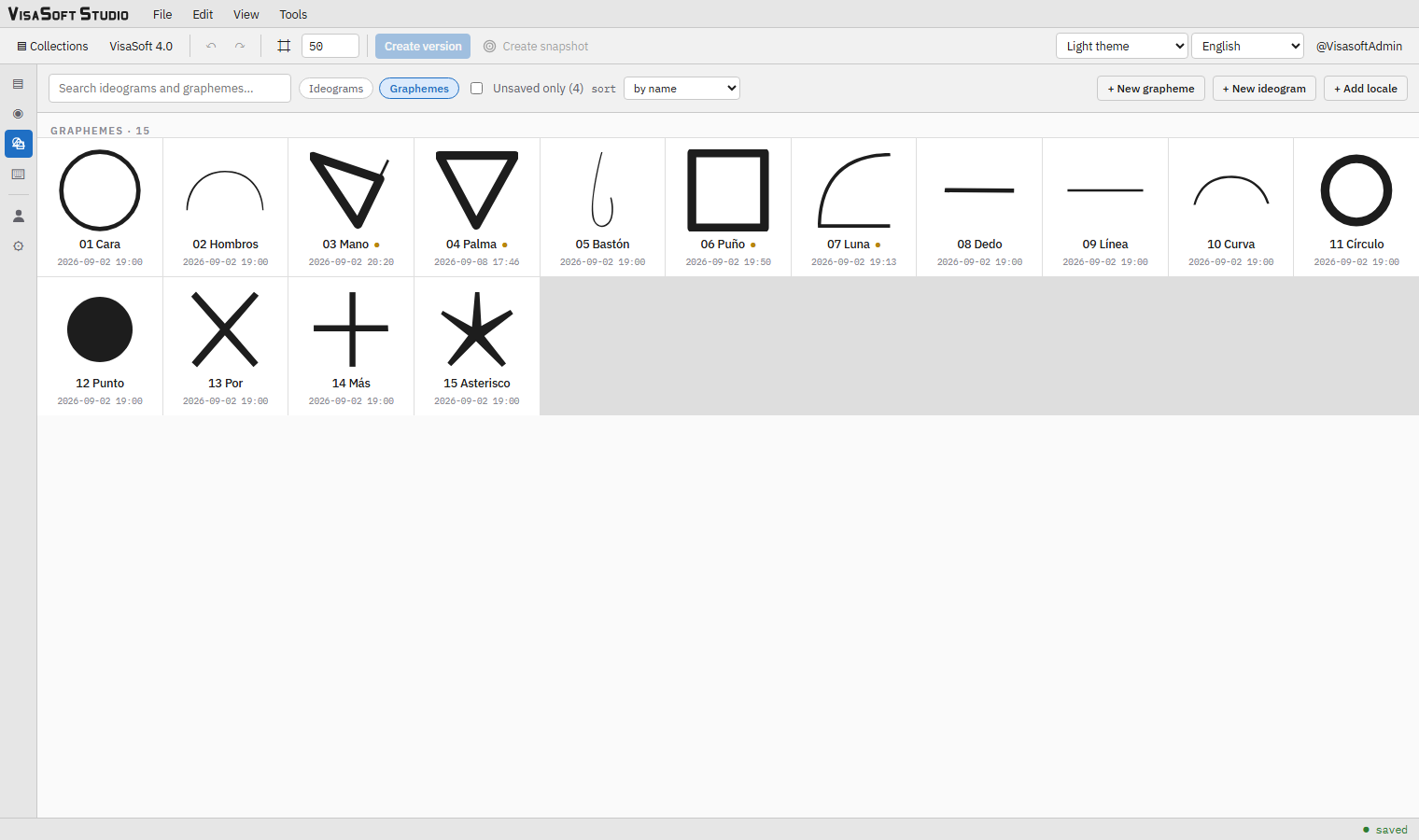
Opening a collection shows the browser: the index of everything it holds. The top bar has:
| Control | Detail |
|---|---|
| Search ideograms and graphemes… | Filters by name as you type. Ignores accents and case (nino finds niño). |
| Ideograms / Graphemes | Which kind of item is listed. |
| locale | With ideograms, the locale. The last one used is remembered per collection. |
| Unsaved only (n) | Shows only the items with autosaved but unversioned changes; the number says how many there are. |
| sort | by name or by modification date (newest first). |
| + New grapheme, + New ideogram | Open the new item dialog. |
| + Add locale | As in the detail. |
Every cell is a specimen drawn live from its current state (autosaved changes included), with the name, a ● dot if it has unversioned changes and the date of the last modification. Cells load as they come into view, so a collection of thousands of ideograms opens instantly. A click opens the item in an editor tab; the cells of items already open are highlighted.
Tabs

Every open item is a tab with its kind (I ideogram, G grapheme), its name and a dot if it has changes waiting to be sent. Tabs close with × or with the middle mouse button; they reorder by dragging; the + tab returns to the browser leaving the others open. Closing a tab with pending changes sends them before closing.
New grapheme or ideogram
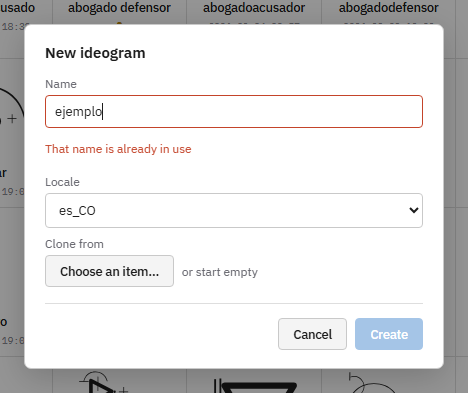
| Field | Detail |
|---|---|
| Name | Required and unique within the collection (graphemes) or the locale (ideograms), case-insensitively. Turns red if it already exists. By convention graphemes start with a two-digit number: 16 Nuevo. |
| Locale | Ideograms only. |
| Clone from | Optional: Pick an item… opens a picker to start from a copy of another item; or start empty. |
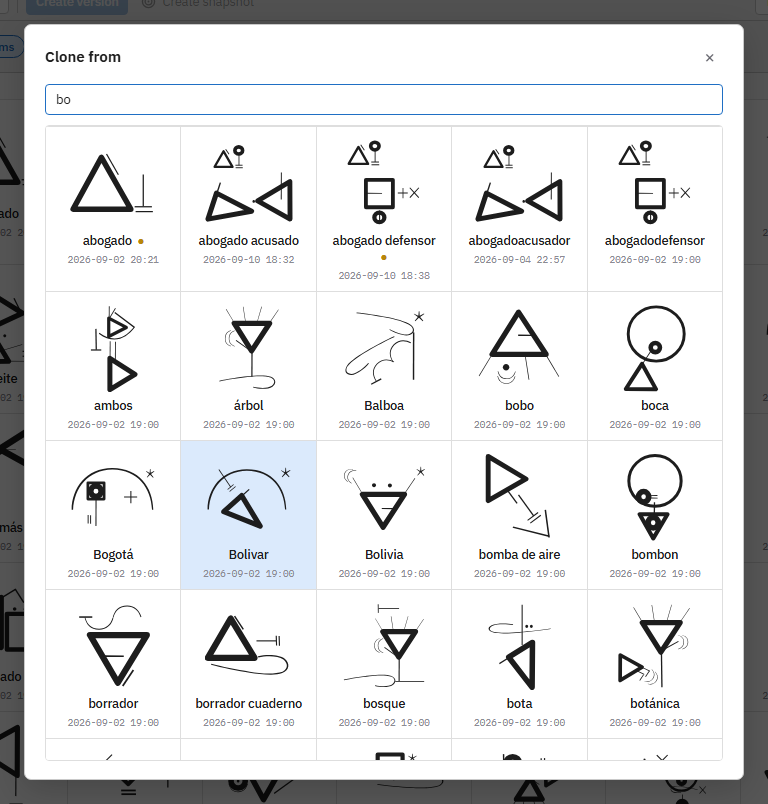
The picker searches by name from two characters on and shows up to sixty matches with their drawing; a click picks one. Once picked, the dialog shows the preview with Change and Start empty.
Create creates the item as version 1, live, opens it in a tab and shows it in the browser.
The same dialog appears when cloning an item from the editor (Edit → Clone item… or the ⧉ button of the panel): the name is then proposed as "Name 2" and the copy starts from exactly the state on screen, unsaved changes included.
Import XML
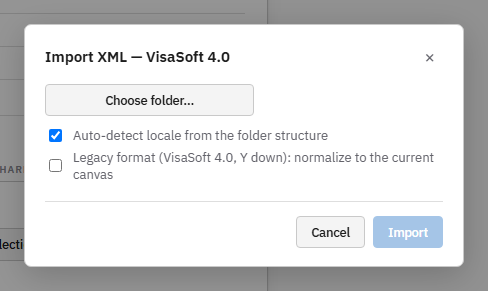
Imports .grf (grapheme) and .idg (ideogram) files from a folder on disk, with any structure of subfolders.
- Choose folder…: in Chrome and Edge the system folder picker opens and the files are read without uploading anything yet; in other browsers the standard "upload folder" dialog is used. When reading ends, the dialog says how many
.grfand.idgfiles it found. - Detect the locale from the folder structure (ticked by default): every ideogram goes to the locale whose name (
es_CO,en_US…) appears as the closest folder on its path. Locales the collection lacks are created; ideograms under no locale folder go to the collection's first locale (the dialog says so). Unticked, the field Import into locale appears and everything goes to the one you type, which may be new. - Legacy format (VisaSoft 4.0, Y downwards): tick it only for files from the original program. Their coordinates use the old canvas (Y downwards) and are converted to the current page: scaled, shifted to the page origin, and rotations change sign. Unticked, files are imported as they are because they already hold the current canvas (Y upwards, 1,000 units, root marked
lienzo="y-arriba-1000"), like the ones VisaSoft Studio exports. - The summary shows the ideograms per locale, with the new badge on the ones that will be created.
- If an imported item already exists, choose what to do with duplicates:
- Override: creates a new version and makes it live;
- Create version: creates the version without making it live, to review it first;
- Discard duplicates: leaves the existing ones untouched.
- Import uploads the package and shows progress. When done, the notice says how many graphemes and ideograms were imported and, if any ideogram references graphemes the collection lacks, which ones are missing (those ideograms are imported anyway, but that grapheme is not drawn until it exists).
Graphemes are always imported first and are common to every locale; the same .grf under several locale folders counts once.
Export XML
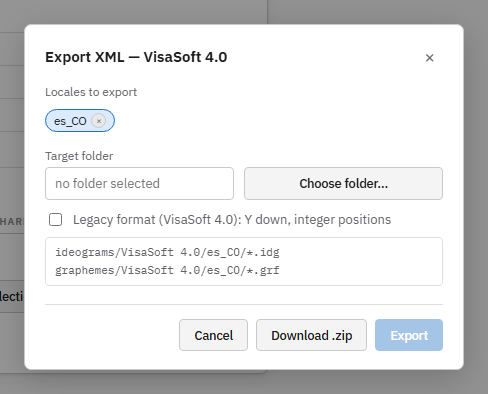
Exports the live versions of the collection as .grf and .idg files.
| Control | Detail |
|---|---|
| Locales to export | Chips of the included locales (all by default); × removes one and Add locale… puts it back. |
| Target folder (Chrome and Edge) | Choose folder… picks a folder on disk; its name shows in the field. |
| Legacy format (VisaSoft 4.0) | Unticked, the current format: Y upwards, positions with decimals and the lienzo="y-arriba-1000" marker. Ticked, the format the original program reads: current size and origin kept, only Y flipped, integer positions. |
| Folder tree | Shows exactly what will be created: ideograms/Collection/locale/.idg and graphemes/Collection/locale/.grf for every locale (the words ideograms and graphemes follow the interface language). |
| Download .zip | Downloads everything as one Collection.zip, with progress. |
| Export | Writes the tree straight into the chosen folder, file by file, with progress. Only with a folder chosen. |
Files are ISO-8859-1 with CRLF line endings, like the originals; properties that exist only in VisaSoft Studio (thickness ×, object names, rotation centres) are not written.
Resource groups and permissions
Every collection lives in exactly one resource group. The three initial groups are Default, Private and Public, owned by the administrators' team; more can be created. The group is chosen when a collection is created or cloned and only changes through a transfer request accepted by the owning team of the target group. Who may read, create, edit, delete, version, import, export or generate fonts is decided by the permission rules.