
Versions and snapshots
VisaSoft Studio saves in three layers that are worth telling apart, because they explain everything the toolbar and the History box show:
| Layer | What it is | When it changes | Who sees it |
|---|---|---|---|
| Working copy | Your unversioned edits. | Autosave writes it while you edit. | Anyone who opens the item in the editor or the browser. |
| Versions | Numbered immutable copies (v1, v2…). Exactly one is live. | Only Create version adds one; Promote changes which one is live. | Fonts, exports and keyboards use the live one only. |
| Snapshots | Personal copies of a moment. | On open, every so often and with Create snapshot. | Only you; they never become a version. |
Autosave
While editing, the editor's state is sent to the server as the working copy according to your My account preference: after every change (with a short delay) or every N seconds (10–300; 30 by default, with a single clock for every tab). It is also sent when a tab closes and before any versioning operation.
The status bar reflects it: unsaved… (changes not sent yet), saving…, autosaved (the server holds a working copy different from the version), saved (no working copy: the item is exactly its version) and save failed (it will be retried). If you undo back to the exact state of the version, the working copy disappears and the item is saved again.
In the browser, items with a working copy carry a ● and are filtered with Unsaved only; the collection detail counts them as Unversioned changes.
Creating a version
Create version (toolbar, Edit → Create version or Ctrl+S) freezes the working copy as a new immutable version. Two important things:
- The new version is not the live one: it becomes the version you edit (the current one) and waits to be promoted. The notice reminds you: "saved as v3, not live until promoted".
- If there is no working copy (nothing to version), nothing is created and you are told.
After creating the version the item is saved again (no working copy) and the picker shows the new number.
Versions
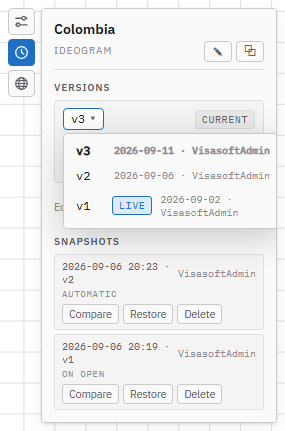
The version picker (on the toolbar and in the History box) shows the version you are editing. Open, it lists them all with their date and author, and marks the live one and the deprecated ones. Choosing another version checks it out in the editor: the editor now works on it and the working copy is discarded. If you have unversioned changes, a dialog warns you and offers Switch and discard.
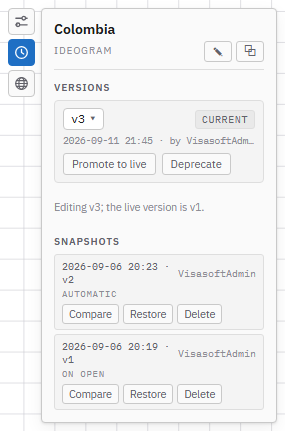
Next to the picker, the LIVE badge confirms you are editing the live version; LIVE v1 means you are editing another (v3, say) and that the live one is v1. The History box says it in words: "Editing v3; the live version is v1".
In the History box, for the version being edited:
| Button | Effect |
|---|---|
| Promote to live | After confirming ("Exports and fonts will use it instead of v1"), the version becomes the live one. Any version that is not live can be promoted, deprecated ones included (they are revived). Needs the restore version permission. |
| Deprecate | Marks the version as deprecated: it still exists and can be revived, but is flagged as discarded. The live version cannot be deprecated. Needs deprecate version. |
| Revive | Removes the deprecated flag. |
Versions are never deleted. Versioning events (create, promote, checkout, deprecate, revive) are recorded in the activity log.
Snapshots
Snapshots are personal copies of the item at a given moment. They are taken:
- on open, when the item is opened in the editor;
- automatically every N minutes while it is open (5–240; 30 by default; a My account preference);
- by hand with ◎ Create snapshot (toolbar or Edit → Create snapshot);
- before restoring another snapshot, so the replaced state is not lost.
A snapshot identical to your latest snapshot of the same item is not saved ("Identical to your latest snapshot, nothing was saved"). Every user has their own snapshot trail; other people's do not show.
In the list, every snapshot shows the date, the version it was taken on, who took it, the kind (on open, automatic, manual, before restore) and three buttons:
| Button | Effect |
|---|---|
| Compare | Opens the compare dialog. |
| Restore | After confirming, the current state is saved as a before restore snapshot and the chosen snapshot becomes the working copy (an unversioned change, not a version). |
| Delete | After confirming, deletes it permanently. |
Compare
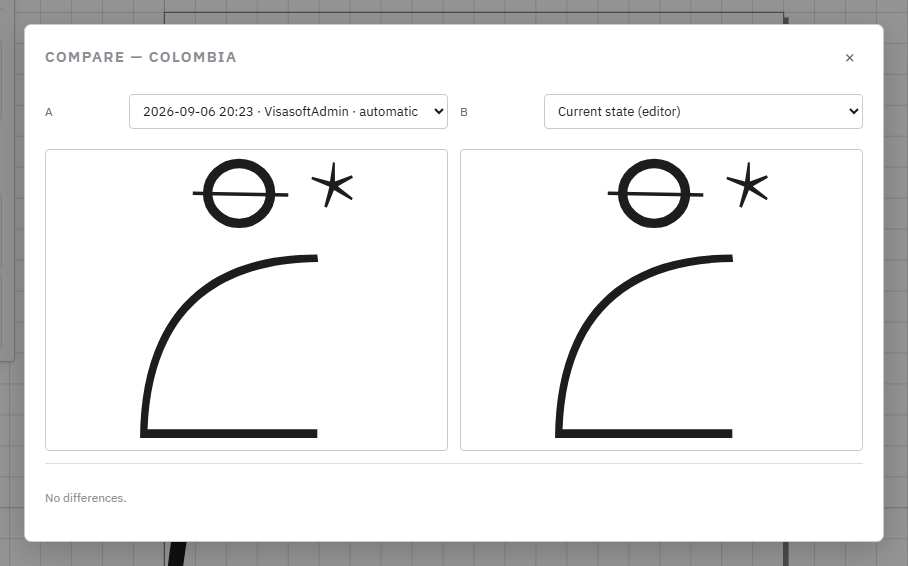
The Compare dialog puts two states of the item side by side, A and B, chosen among the current state (editor), any version (the live one marked) and any snapshot. Below the two previews, a table lists the differences property by property: for every numbered grapheme (in ideograms) or object (in graphemes), the value in A and in B, with additions, removals and changes told apart by colour; vertex changes are summarised as the number of points. If there are no differences, it says so. Escape closes.
Recommended flow
- Edit freely: autosave protects the working copy and automatic snapshots mark the trail.
- Before a risky change, Create snapshot.
- When the item is the way you want it, Create version.
- Compare the new version with the live one and, if appropriate, Promote to live: from then on it enters the fonts and exports.
- If you regret it, restore a snapshot or promote the previous version again.