
Grapheme editor
The grapheme editor draws the basic shapes. A grapheme is a set of objects (polygons) made of vertices and straight or curved segments, each with its position, scale, rotation and stroke. It opens with a click on a grapheme in the browser (Graphemes chip).
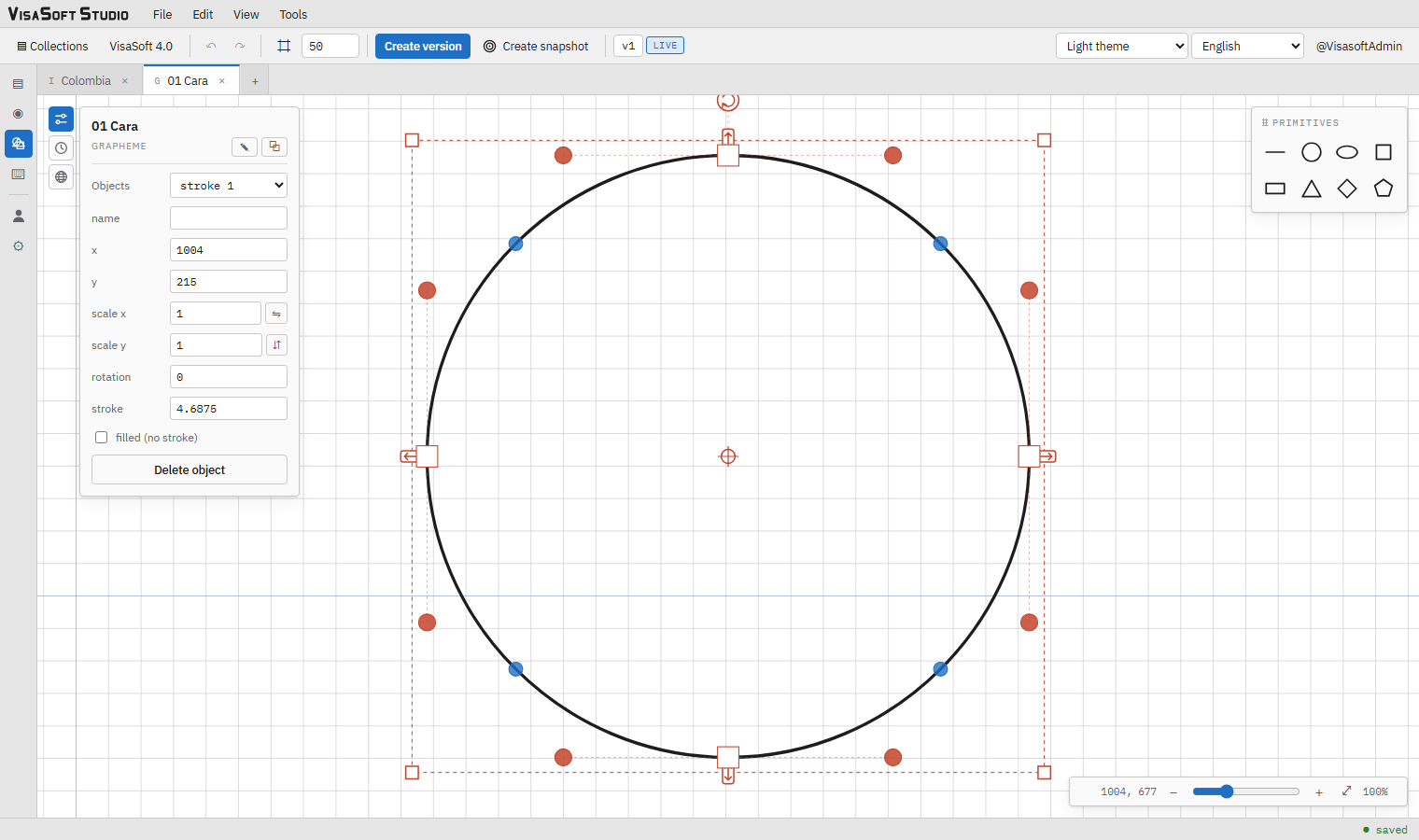
The layout is the same as the ideogram editor's: toolbar, canvas with grid and origin guides, properties panel on the left, zoom bar. What changes is the floating box, here the Primitives box, and the vertex handles. The grapheme editor shows neither the glyph page nor the percentile frames: a grapheme has no size of its own in the text, it takes it from every ideogram that uses it.
The primitives
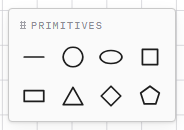
The Primitives box adds a new object at the centre of the view, with the same geometry as in the original program (the ellipse is a Bézier with κ = 0.5522847498):
| Primitive | Shape |
|---|---|
| line | A two-vertex segment. |
| circle, ellipse | Four Bézier arcs. |
| square, rectangle | Four vertices at the corners. |
| triangle | Three vertices. |
| rhombus | Four vertices at the midpoints of the box's sides. |
| polygon | A free polygon, drawn click by click. |
Every new object gets the name of its primitive with a running number ("circle 1", "line 2") and the default stroke (18.75 units, the original program's "8"), and is left selected.
Drawing a free polygon
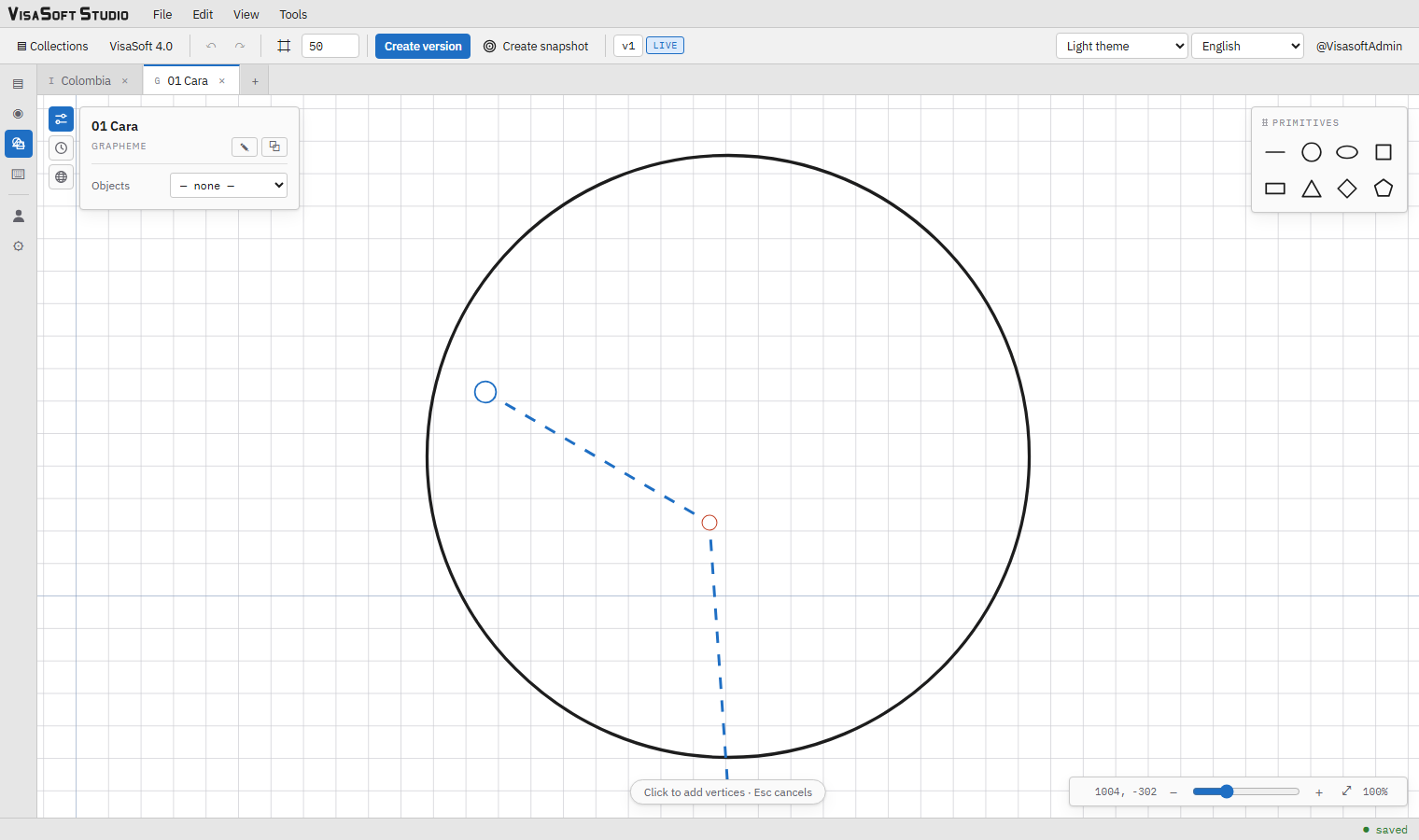
When polygon is chosen the cursor becomes a cross and a hint appears at the bottom:
- Every click adds a vertex; with Shift the vertex snaps to the grid. A dashed line shows the segment to the pointer.
- To close, with at least three vertices: click on the first vertex, double-click or Enter.
- Escape cancels the drawing.
The polygon is created with straight segments; turn them into curves afterwards.
Selecting, moving, transforming
Same as in the ideogram editor: click to select, Shift+click to add or remove, drag on the background for marquee selection (objects fully inside), drag the body to move (Shift snaps to the grid), arrows to move 1 unit (Shift to the next grid line), Delete to delete, Ctrl+drag or middle button to pan, wheel to zoom.
The gizmo is the same too: edge handles (one axis), corner handles (uniform), rotation handle (Shift = 15° steps) and rotation centre (drag, Shift snaps, double-click resets). The details are in the gizmo.
Vertices and curves
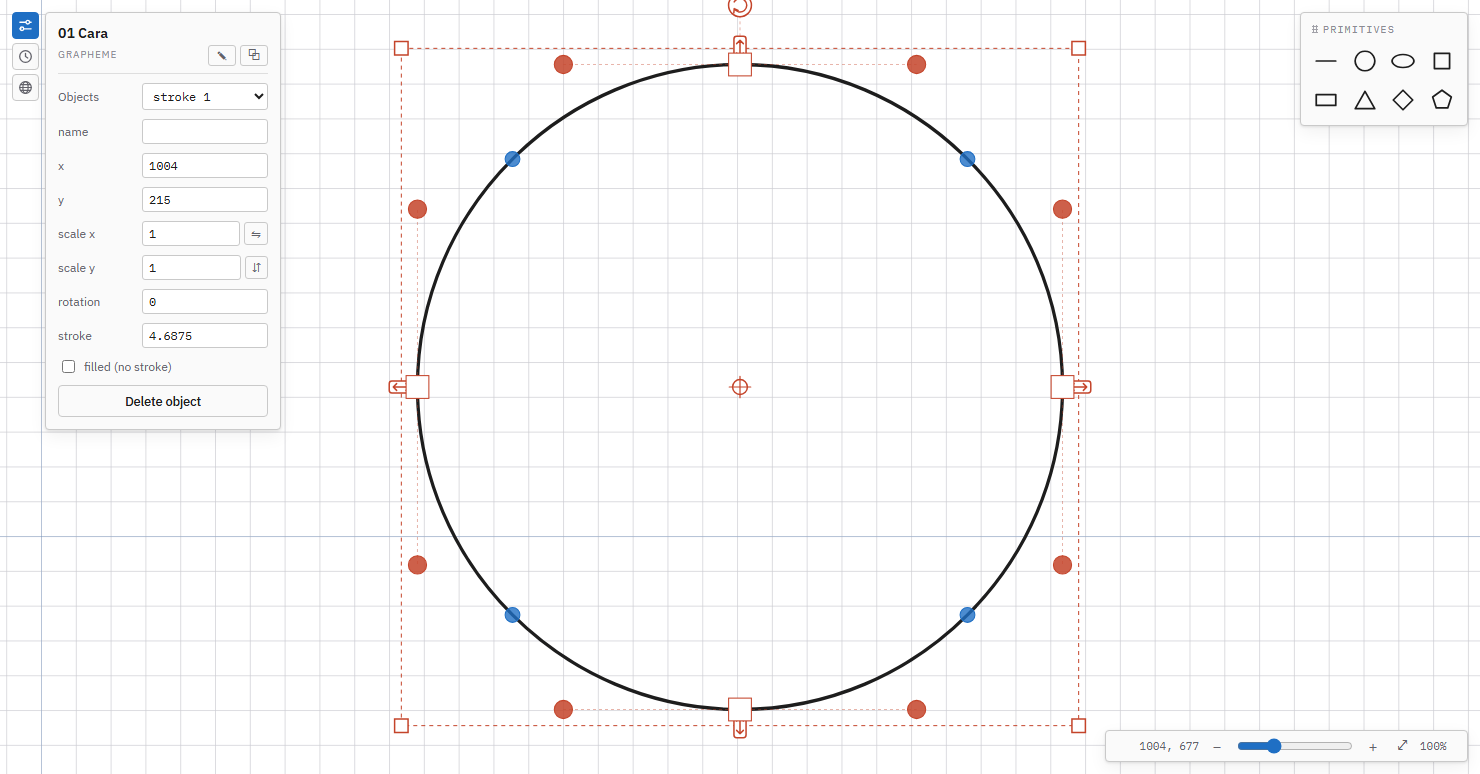
Only the selected object shows its nodes:
| Handle | Look | Action |
|---|---|---|
| Vertex | Square | Dragging moves it; with Shift it snaps to the grid. Right-click: node menu. |
| Control point | Red circle joined to the vertex by a line | Curved segments only: dragging shapes the Bézier curve (two control points per segment). |
| Segment toggle | Small circle at the midpoint of every segment | Click turns the segment from straight to curve or from curve to straight. Right-click offers the same in a menu. A new curve starts with its control points on the straight line, so it looks the same until you move them. |
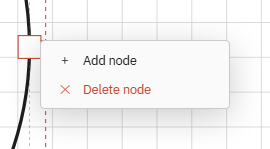
The vertex menu (right-click on the square):
- Add node: duplicates the vertex in the same position; drag it apart. The original outgoing segment (straight or curved) moves to the new node and a zero-length straight segment sits between the twins.
- Delete node: removes the vertex and its outgoing segment; the previous one joins the neighbours. It cannot go below two vertices.
Mirroring
Mirror horizontal / vertical (context menu, ⇋ ⇵ buttons in the panel) reflect each polygon across the vertical or horizontal line through its rotation centre (the pivot, or the position when it was never moved). Every node is recomputed — vertices and control points — and the rotation changes sign; the X and Y scales do not change. With several selected, each one is reflected about its own centre, which does not move.
Copy, cut and paste
Selected polygons are copied with Ctrl+C (or Copy in the Edit menu or the context menu), cut with Ctrl+X and pasted with Ctrl+V. What is pasted lands one grid step up and to the right of the original (each further paste, one step more), gets a new name and stays selected. The clipboard is shared by every open tab.
The properties panel
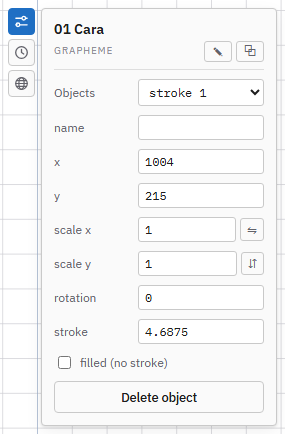
The header shows the grapheme's name with ✎ Rename and ⧉ Clone. When renaming a grapheme the confirmation dialog says how many ideograms use it and lists the first ones: all of them get the new name (in their versions, working copies and snapshots), so XML exports stay consistent; the drawing does not change because references resolve by identity.
Grapheme box:
- Objects: the list of objects by name ("stroke 1", "circle 2").
- With an object selected:
| Field | Detail |
|---|---|
| name | The object's label (editable). |
| x, y | Position in font units. |
| scale x, scale y | Greater than 0; ⇋ ⇵ mirror. |
| rotation | Degrees. |
| stroke | The stroke thickness (minimum 1). Disabled while the object is filled. |
| filled (no stroke) | Ticked, the object is drawn as a solid shape (stroke 0 in the file); unticking restores the stroke it had. |
| rotation centre | As with ideograms. |
| Delete object | Removes the object. |
- With several selected: ⇋ ⇵ to mirror them all and Remove objects.
The History and Localized names boxes are the same as in the ideogram editor: see Versions and snapshots and localized names. The localized names of graphemes are what shows in the ideogram editor's grapheme toolbox, in the text editor's Graphemes panel and in the keyboards' palettes.
The context menu
On an object, the same as in the ideogram editor: Select, Snap to grid, Mirror horizontally / vertically, Rotate 90° clockwise / counter-clockwise, Duplicate (the copy is named automatically) and Delete. On a vertex, the node menu; on a toggle, convert to curve or to straight.
Tips
- Draw the grapheme centred on the origin or near it and at a generous size; every ideogram will scale it (the grapheme toolbox inserts it at scale 0.4).
- Use filled for solid shapes (the dot, the fist) and stroke for lines; the final thickness in an ideogram is the object's stroke × the reference's scale × its thickness ×.
- Strokes become outlines when the font is generated: avoid needless crossings and overly sharp corners.
- Before promoting a version of a grapheme, open a couple of ideograms that use it and compare with the previous snapshot.